
Step 1:
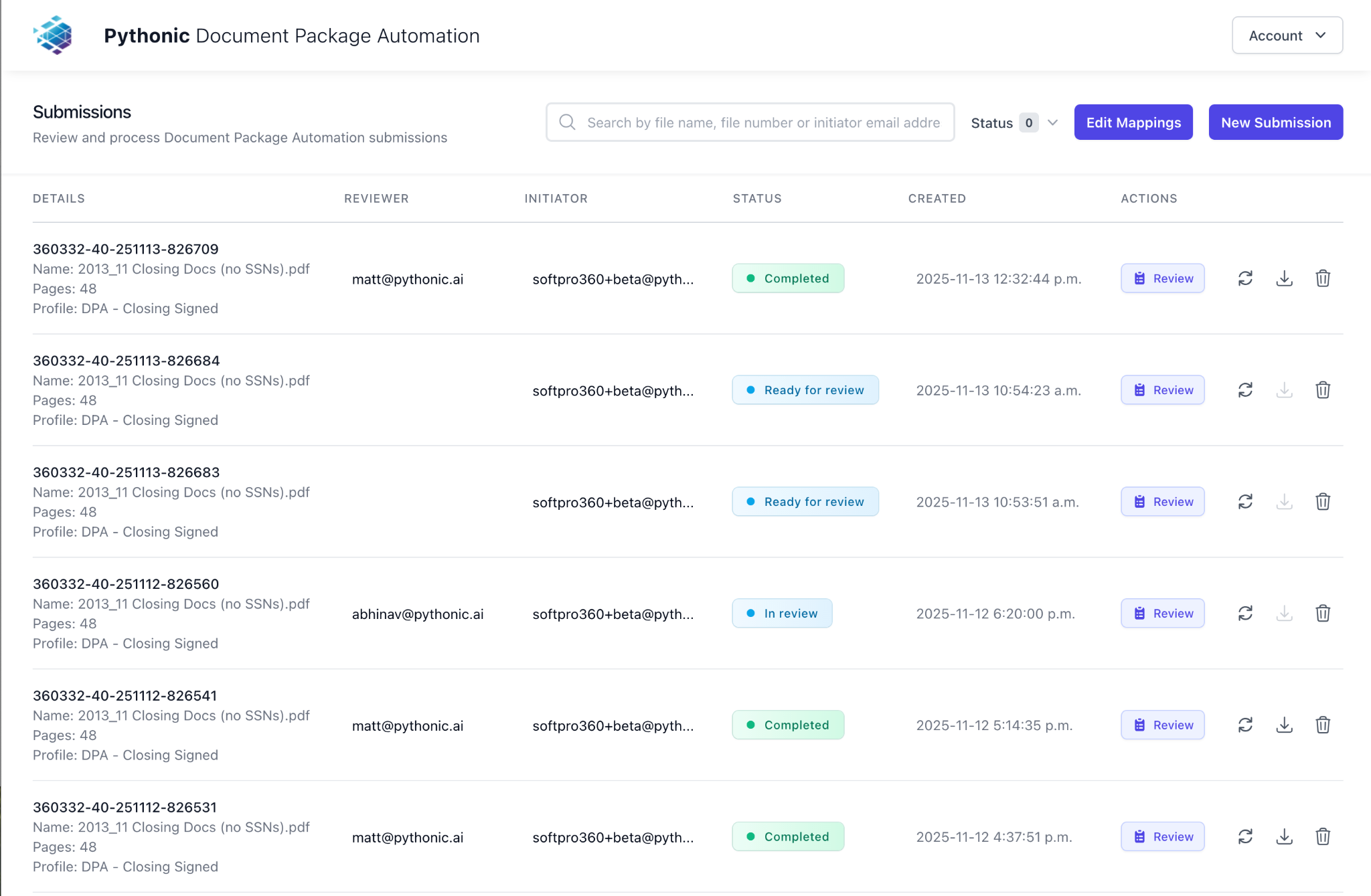
Make sure you are logged in to the Pythonic website.
The URL is in the email that you received from Pythonic with your credentials. In general it should be https://clientname.pythonic.ai/docsplit/review/submissions.
When you logged in the website, you should see a list view similar to below:
Step 2:
In SoftPro:
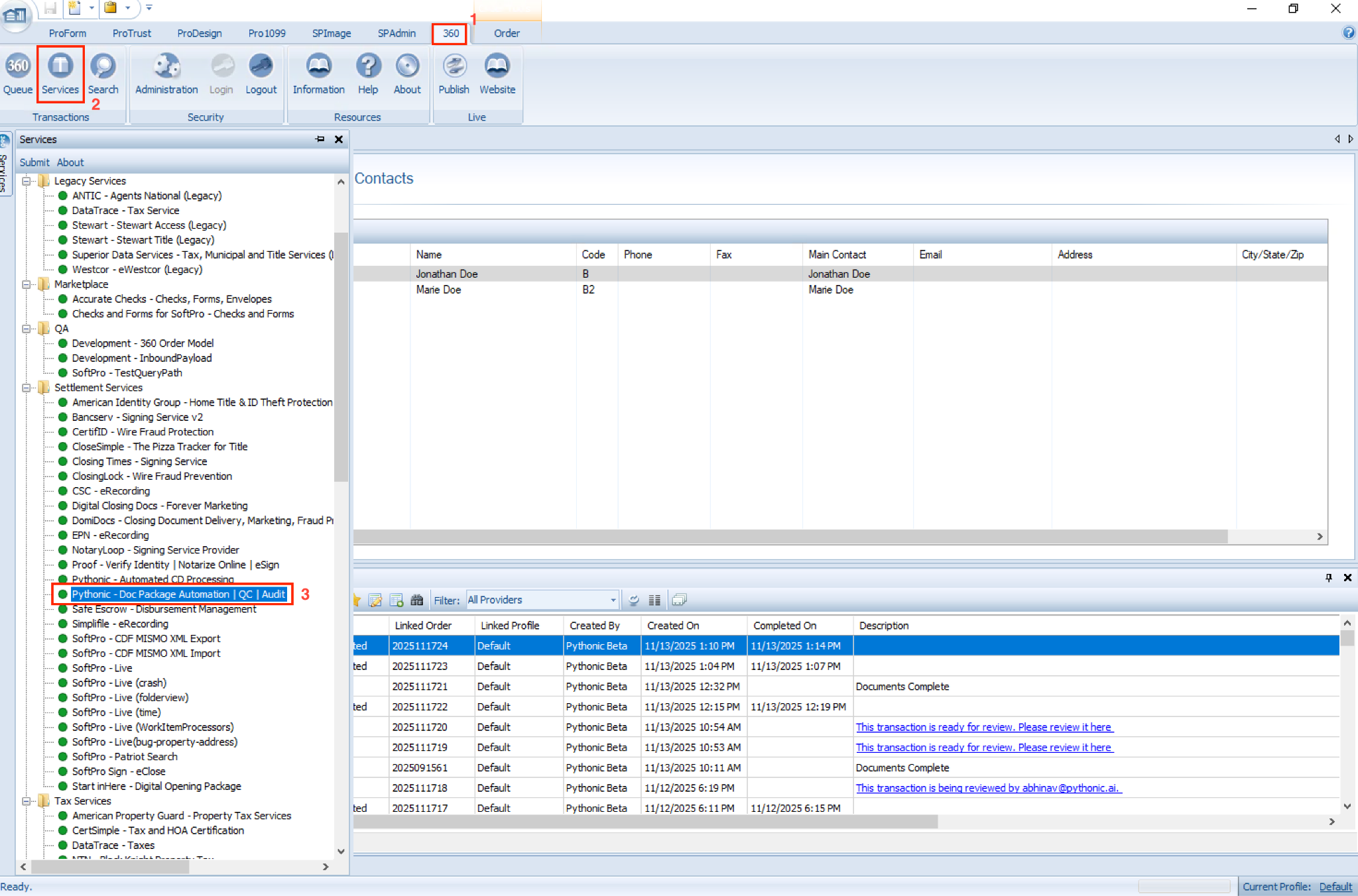
- Click on 360 Tab on the top (labeled as in picture below)
- Click on the Services icon (labeled as number 2 in the picture below)
- Lastly in the Services list, look for: “Pythonic - Doc Package Automation | QC | Audit”
Step 3:
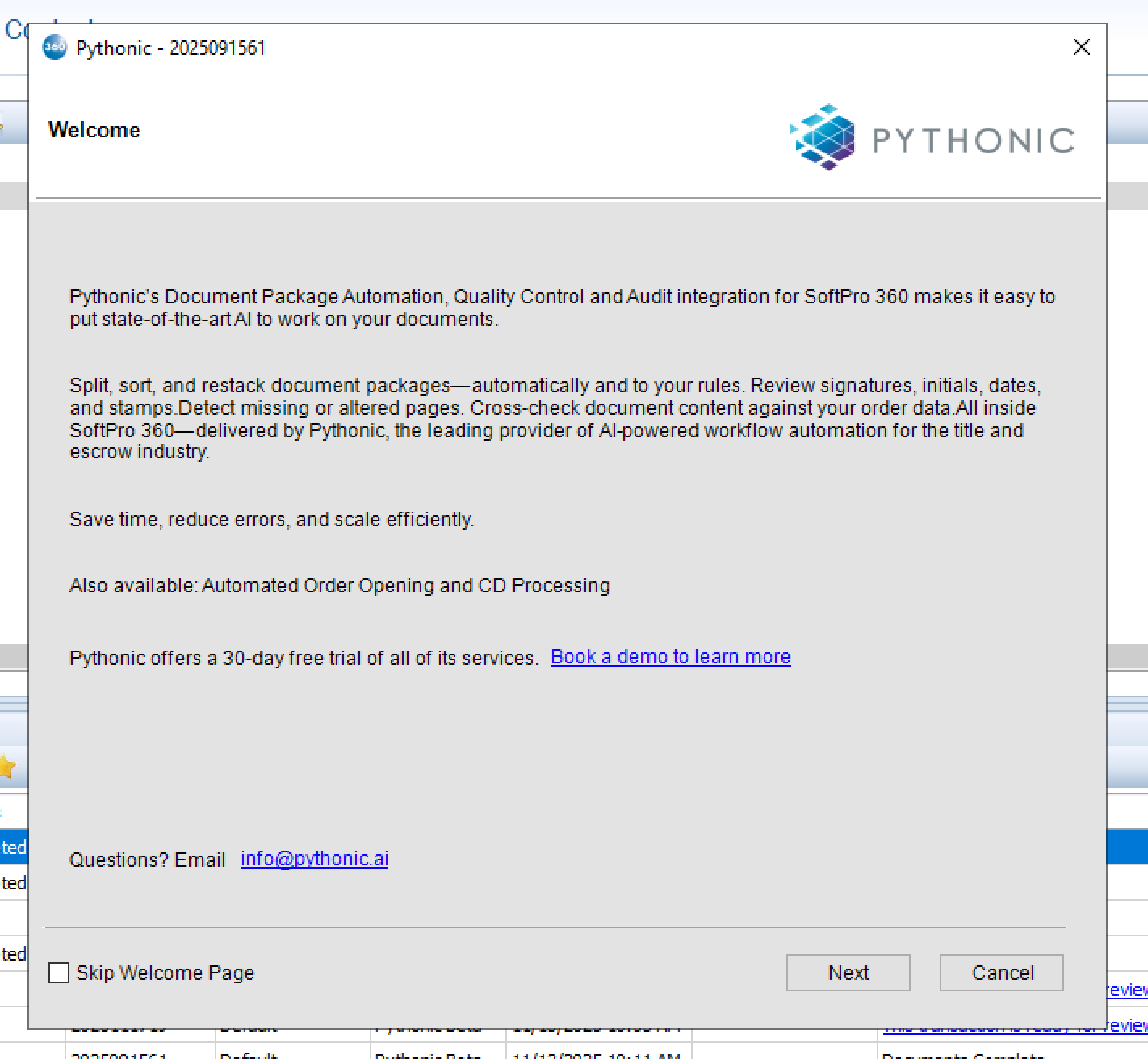
You will see the Pythonic’s Welcome page. Please hit next.
Step 4:
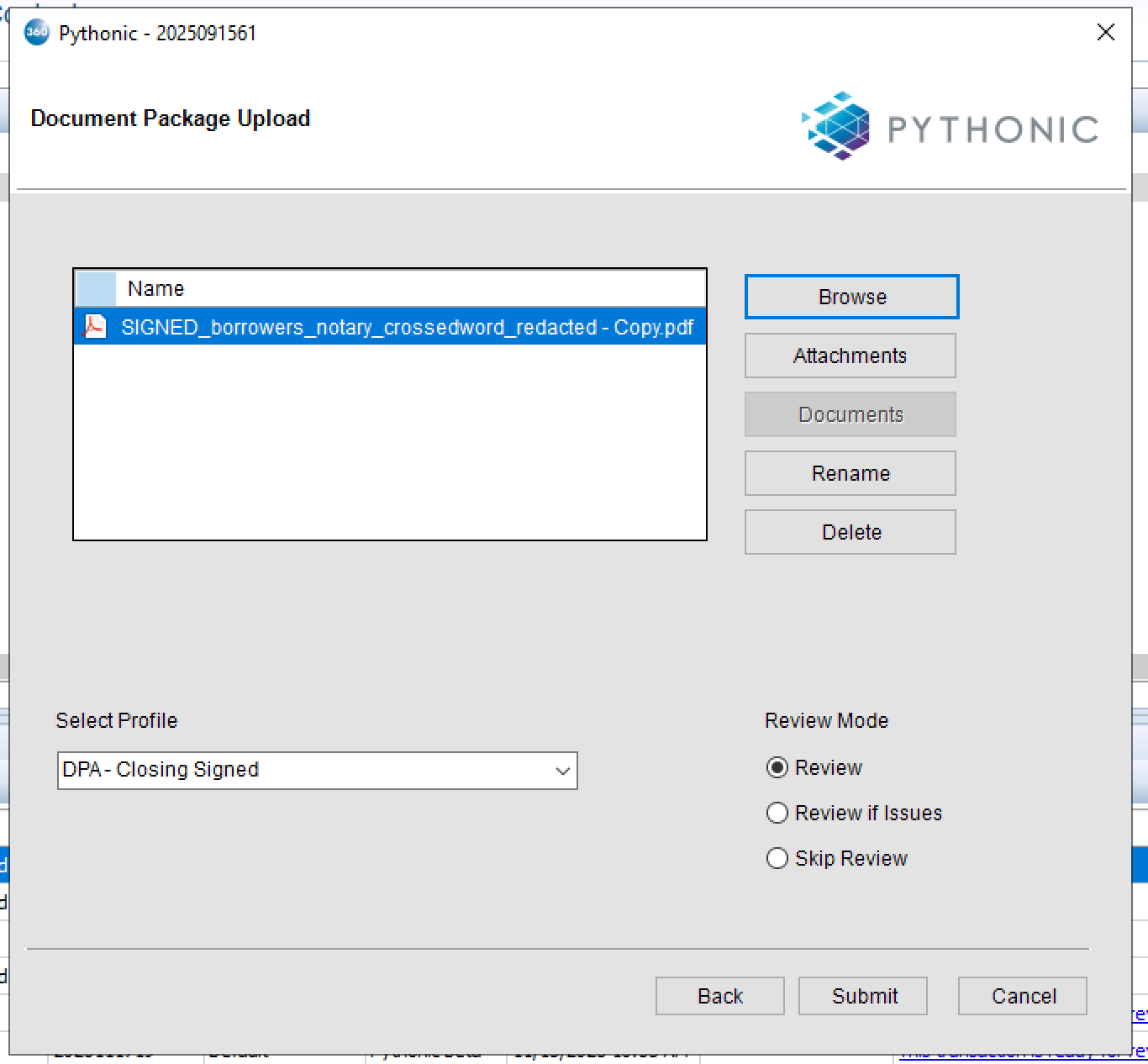
Let’s choose the document you want to send to pythonic for splitting. You can either choose Browse or Attachments.
In the image below I have added one document, feel free to send more than one. Pythonic will merge all the documents before processing.
Step 5:
Choose a profile from the drop menu (The list will differ for you).
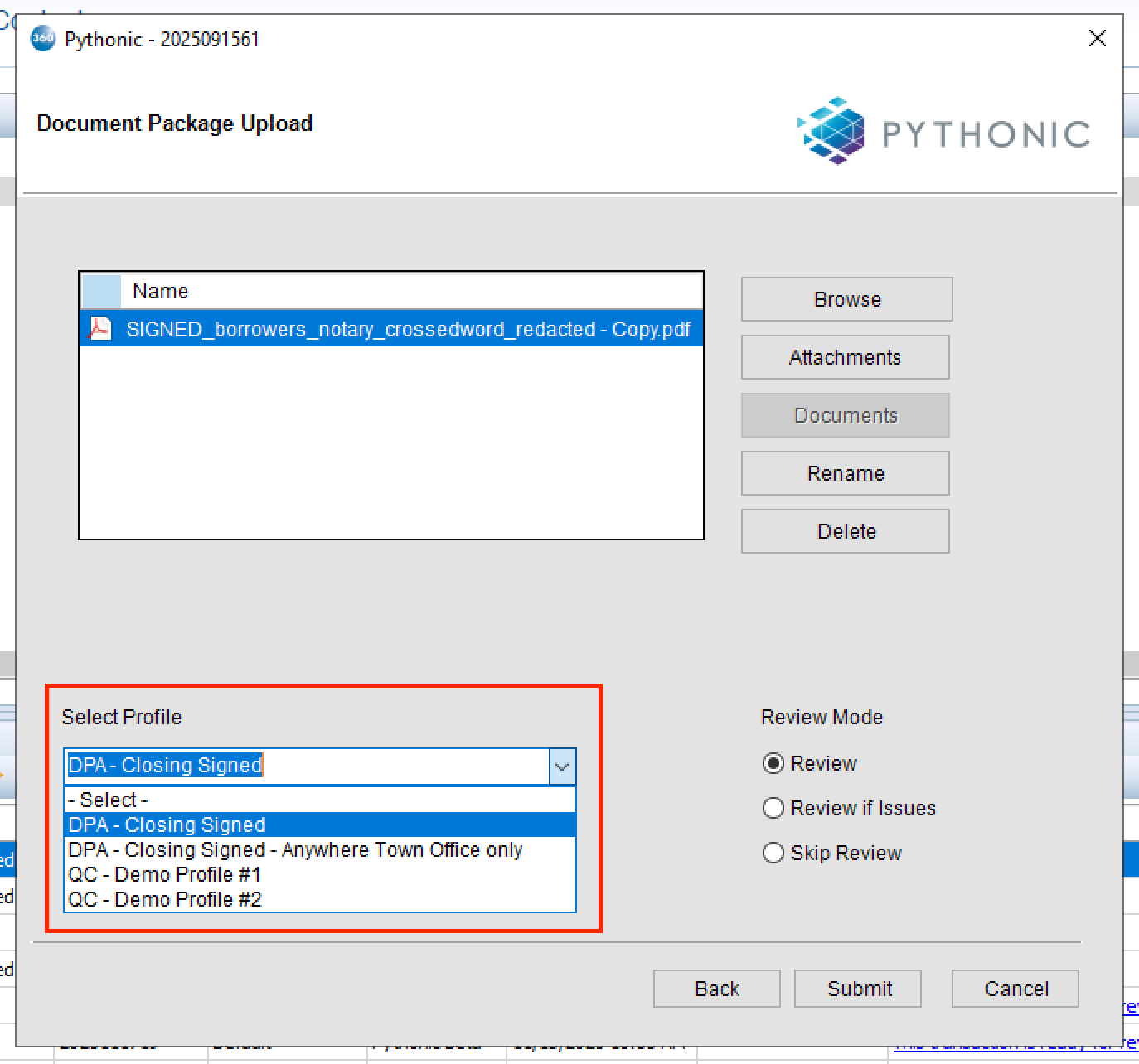
During the onboarding phase, we recommend you always select “Review” in the Review Mode until you feel comfortable to skip reviews or review if there are any issues.
Step 6:
Submit
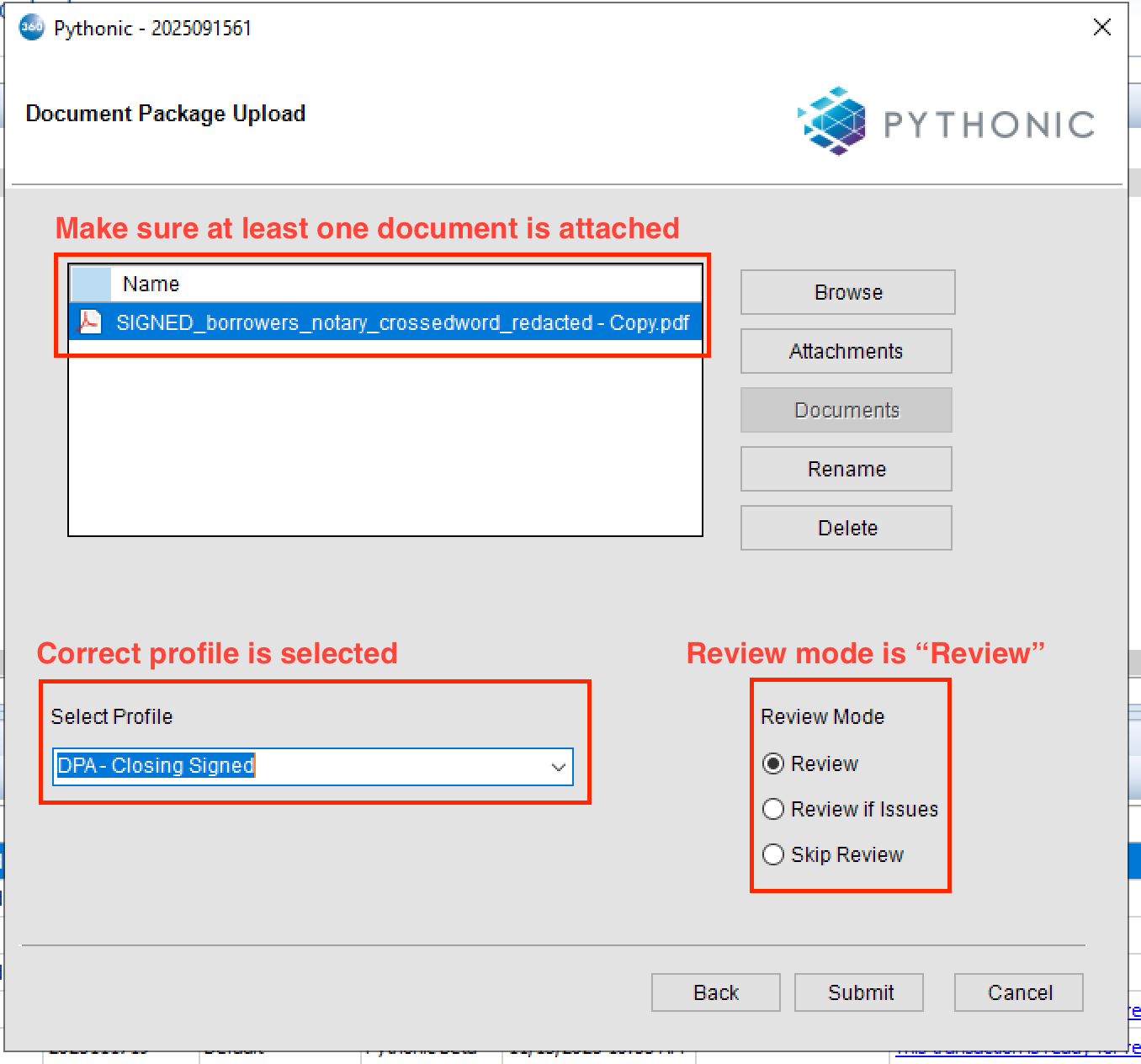
After a 10-20 seconds you should see:
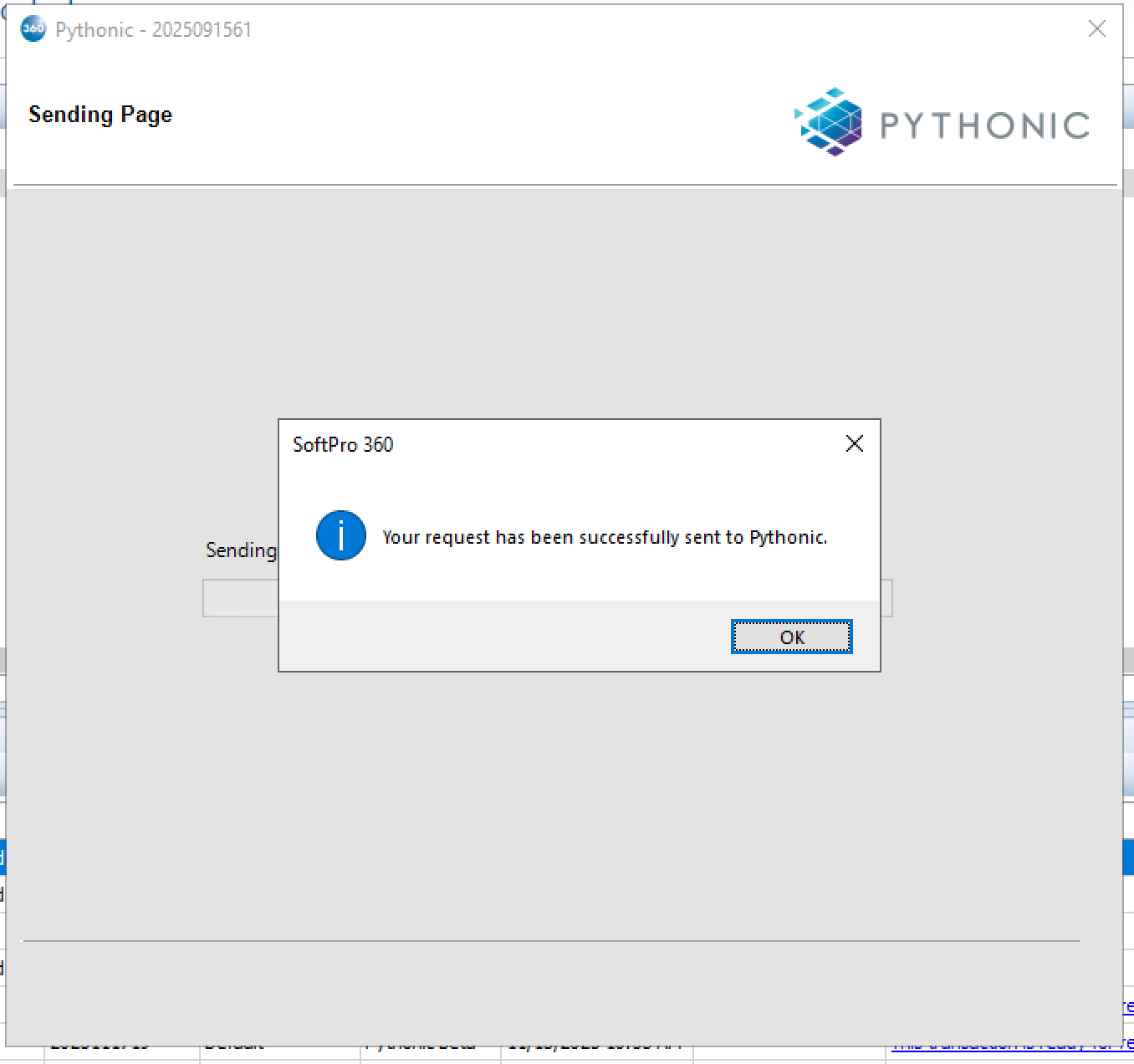
Then click OK.
Step 7:
Review the status in the Queue:
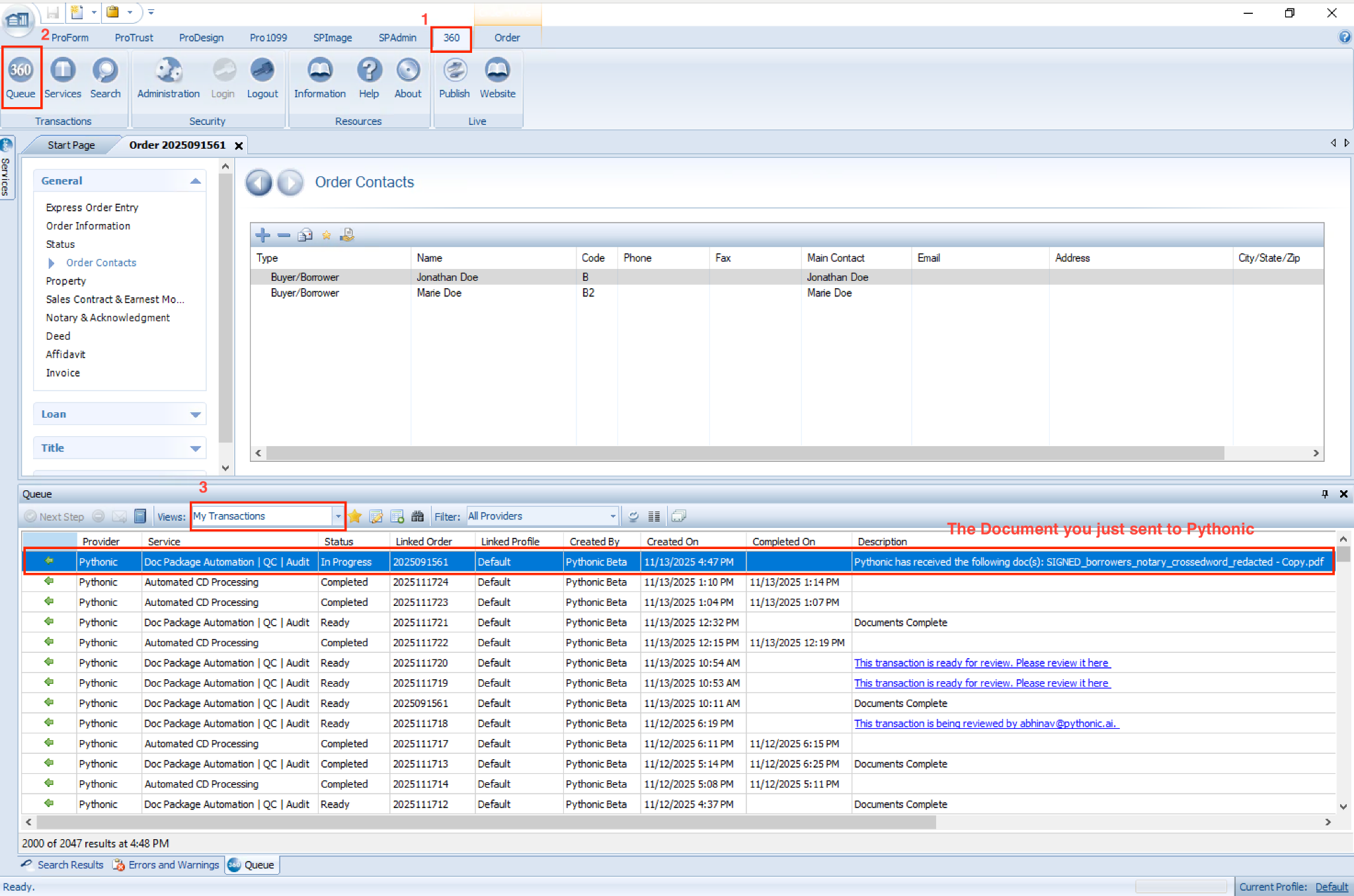
Step 8:
Typically, after few minutes, you will see in the description that the Transaction is ready for review:

Double click the selected section above.
You will automatically be routed to the submission to review the file:
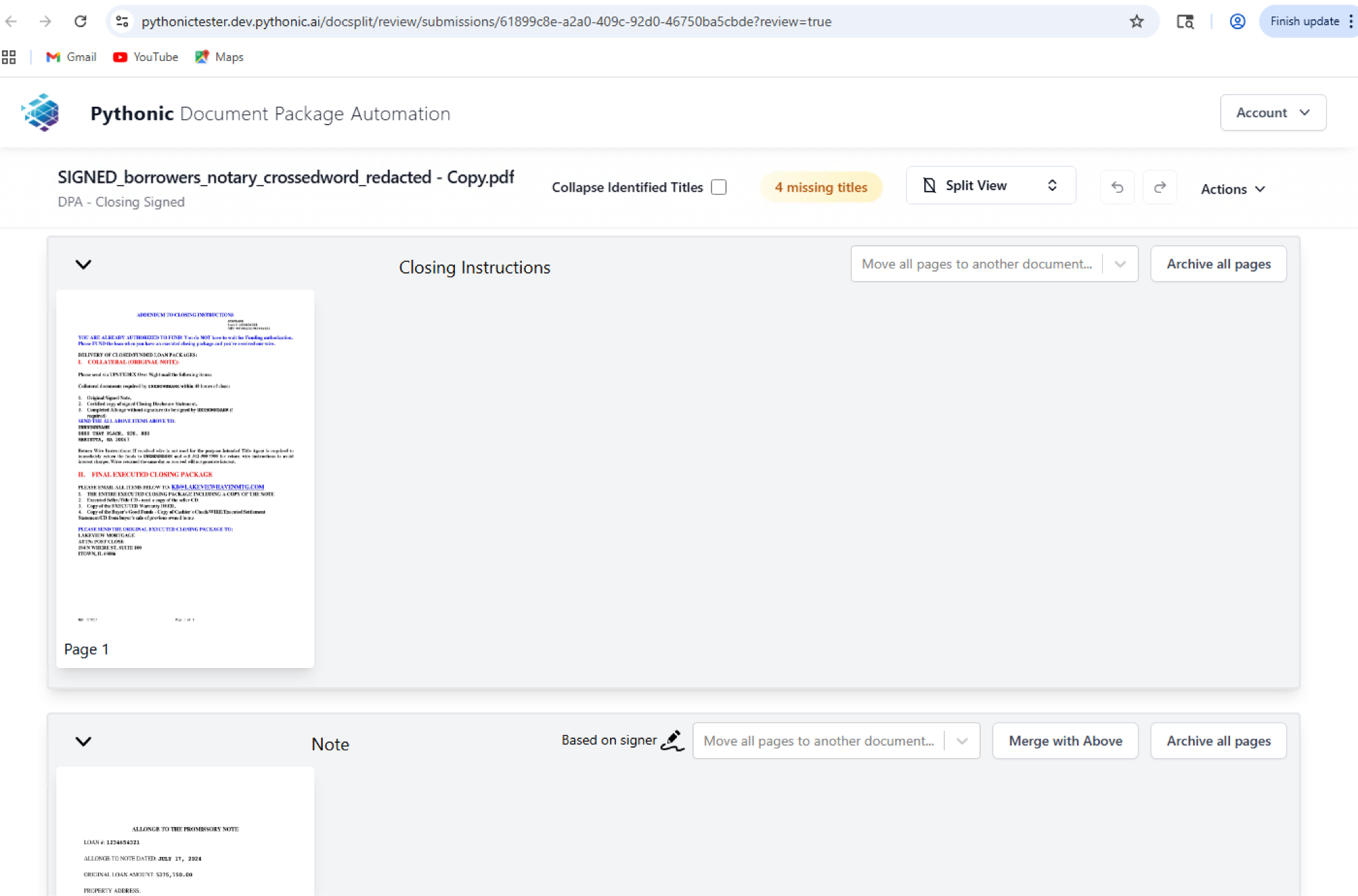
When finished reviewing the document in the Pythonic website. Go to the top right corner:
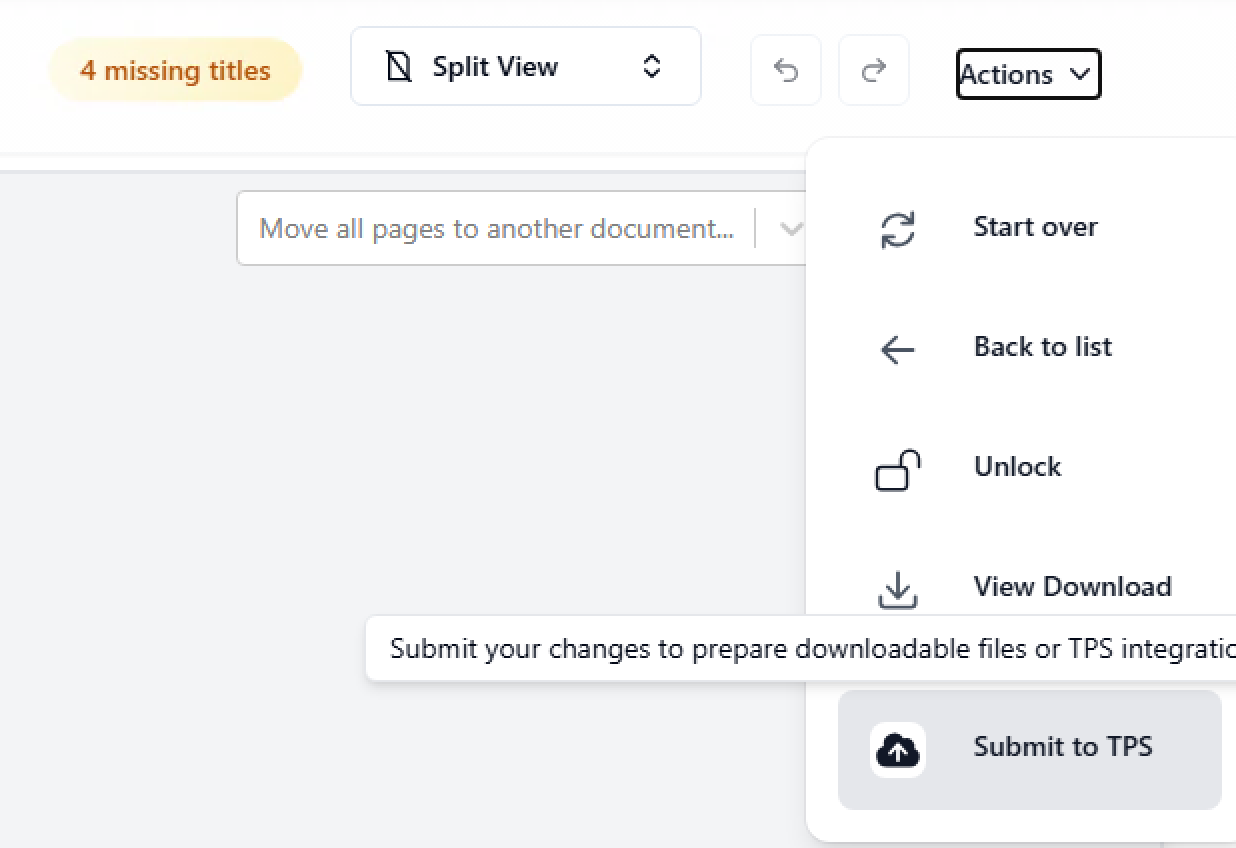
And click submit to TPS.
Step 8: Once clicked on Submit to TPS, you do not need to wait for the last section to finish. Simply go to SoftPro now and you should see the description have updated to:

Typical, 20-30 seconds later you should see a new description: “Documents Completed”.

Step 9:
To accept the files to the SoftPro Click on Next step:

The following menu will appear for you to Accept or Reject the packages.
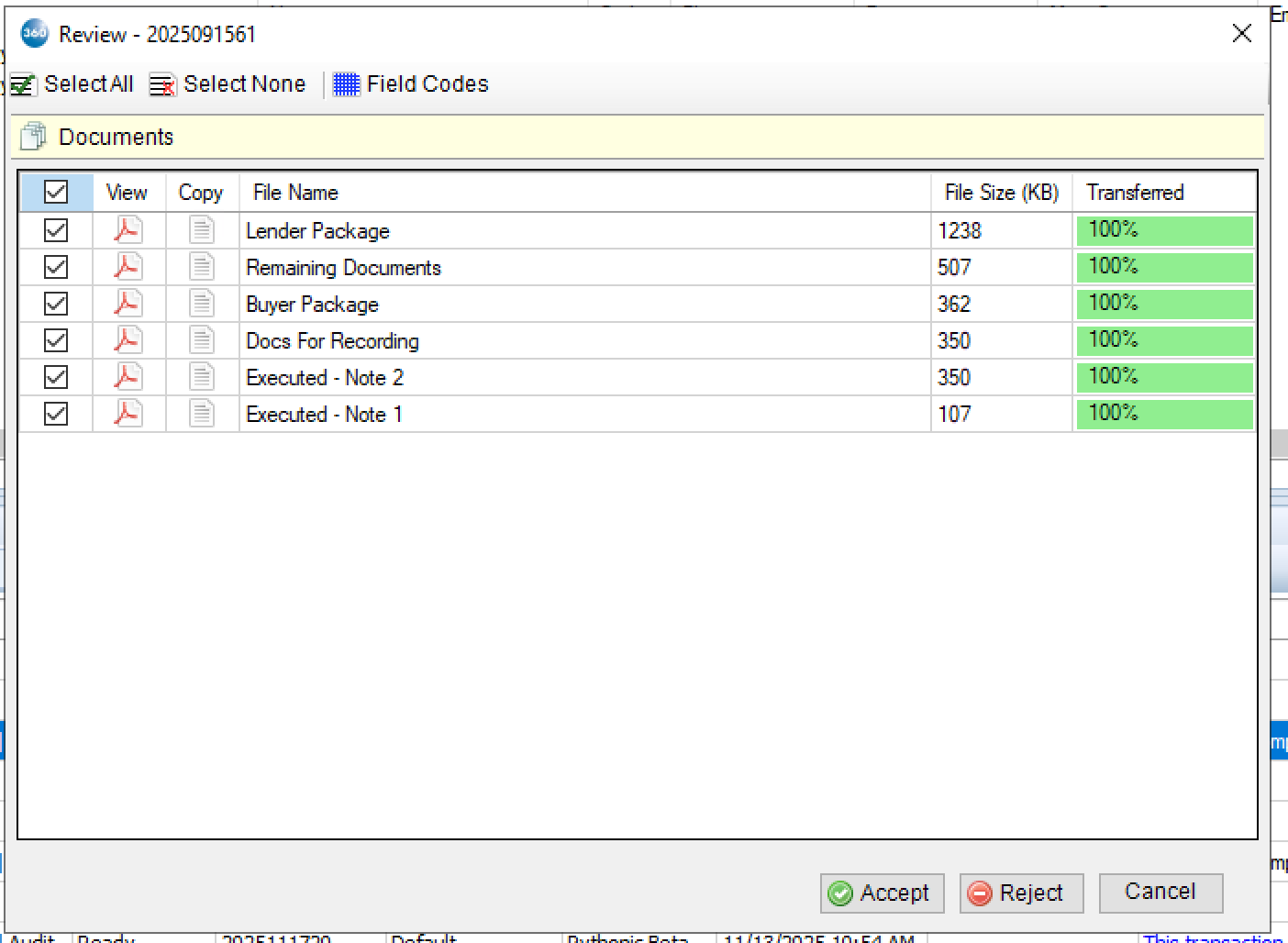
Click Accept and you should see the packages in the correct folder in SoftPro. If the documents are not in a folder you would like them to be, please contact support@pythonic.ai and we are happy to assist.