
What it does
When a submission is split, DPA compares the resulting documents against one another and flags those that look like copies of the same document — for example, the same deed attached twice to one email, or a document that appears both on its own and inside a larger packet.
Duplicate flagging is advisory only. Nothing is deleted, merged, or held back automatically: every document still routes exactly as it would otherwise. The flags exist so you can decide what to keep.
How a duplicate is decided
Two documents are treated as duplicates only when both are true:
- They have the same number of pages, and
- Every page matches its counterpart — page 1 vs page 1, page 2 vs page 2, and so on — above the configured similarity threshold.
The comparison uses the text read from each page, ignoring differences in casing, punctuation and spacing. A single page that doesn't match disqualifies the pair.
If three or more documents match each other, they are grouped together as one duplicate group.
What this means in practice
- A 4-page copy of a 3-page document is not flagged (page counts differ). This is intentional — it keeps the page-by-page comparison meaningful.
- Copies whose page text differs in a real way (an extra recorder's stamp, an added exhibit page) usually will not be flagged.
- Very poor scan quality on one copy can lower the text match enough to miss a true duplicate.
- Blank pages count as matching each other.
Because of the above, treat the flag as a strong hint, not a verdict — always eyeball the pages before removing anything.
What you'll see in the review screen
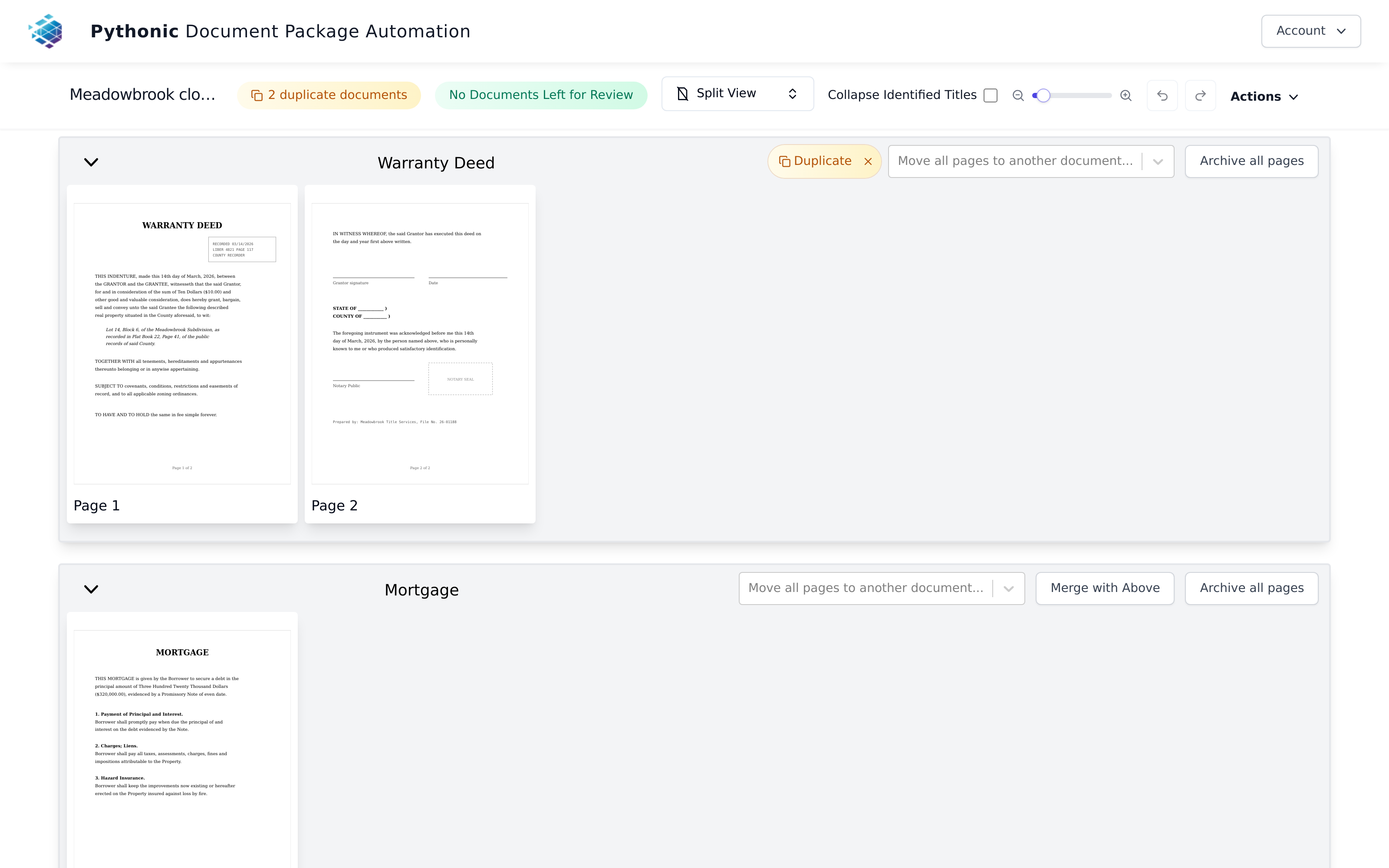
1. Header pill. When duplicates exist, an amber pill appears in the top bar: "2 duplicate documents". Click it to jump to the next flagged document; click again to cycle through them. Keyboard shortcut: press D. (Using the pill or the shortcut switches you into split view automatically.)

2. Per-document badge. Each flagged document shows an amber Duplicate badge next to its title. Hovering it tells you how many other documents it matches.

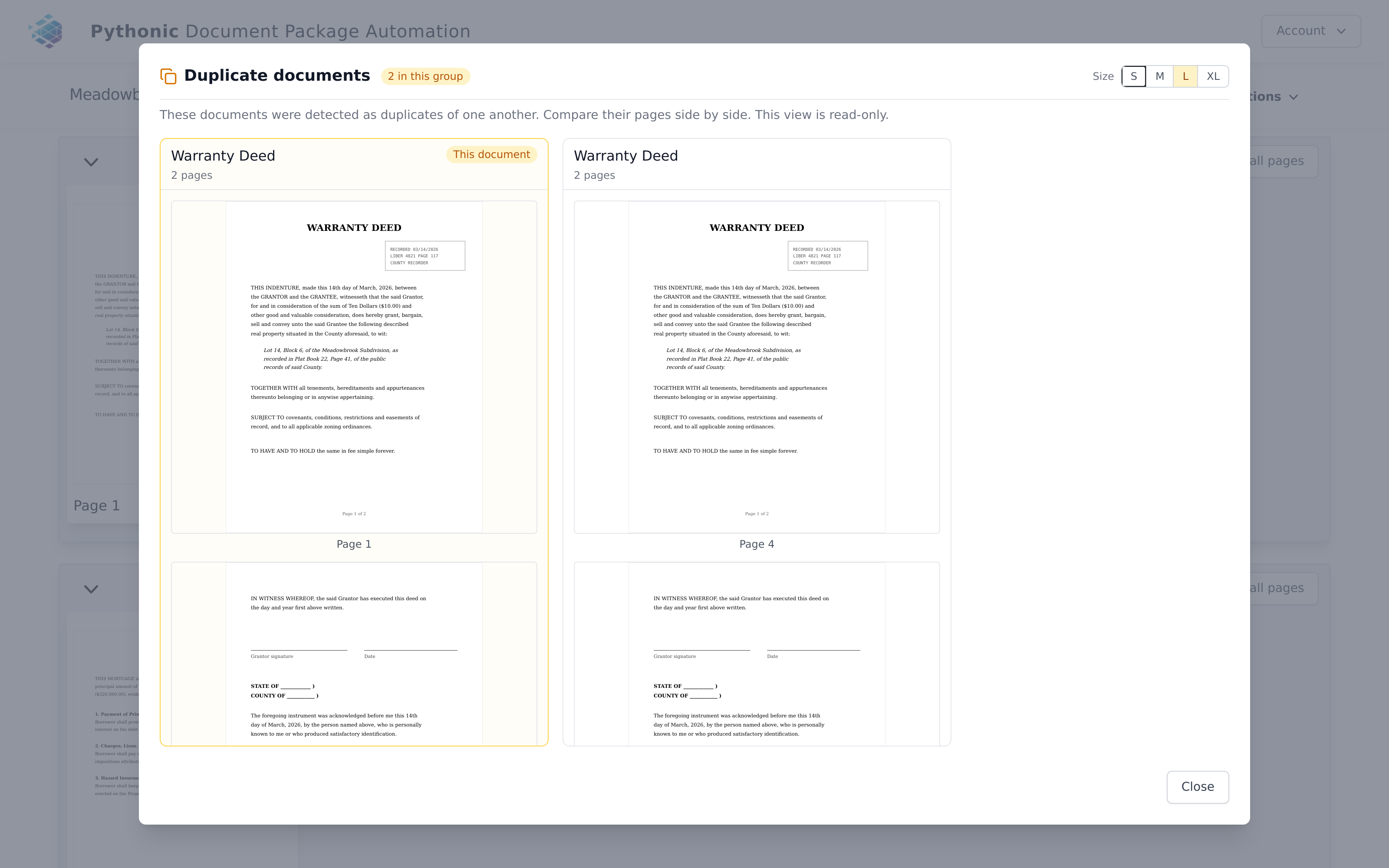
3. Side-by-side comparison. Click the Duplicate badge to open a comparison window showing every document in the group as its own column, with all of its pages as thumbnails labelled by their real page number. The document you clicked from is highlighted and marked "This document." Use the S / M / L / XL buttons to change thumbnail size, and scroll sideways if the group has three or more members. This window is read-only — make changes in the review screen itself.
4. Dismissing a flag. Click the small ✕ on the badge to ignore that duplicate. The badge disappears and the header count drops.
Three things to know before you press it:
- It only hides the warning. The document itself is untouched and will still be delivered. Use ✕ when the flag is wrong or both copies are wanted — not as a way to remove a copy.
- It usually clears the whole pair. A warning needs at least two flagged documents to make sense, so dismissing one half of a pair removes the badge from the other half too, and the pair leaves the header count entirely. (In a group of three or more, the remaining copies stay flagged.)
- You can undo it. Once anything is dismissed, a grey "N dismissed" button appears in the header next to where the duplicate pill was. Click it to bring every dismissed flag on that submission back.
How to handle a flagged duplicate
- Press D (or click the pill) to jump to the flagged document.
- Click the Duplicate badge and compare the pages side by side.
- Then either:
- It really is a redundant copy — go back to the review screen and delete/archive the pages of the copy you don't want to send. Keep the copy you prefer (typically the cleanest scan, or the one already in the right package).
- It's a false alarm, or both copies are wanted — click the ✕ on the badge to dismiss it, and continue reviewing. Both copies stay in the submission and will be delivered.
- Submit the review as usual.